


⚡ TL;DR — Key Takeaways
Your desk setup directly determines how colleagues and clients perceive your professionalism on video calls. A quality webcam, soft front lighting, a stable monitor stand, and a noise-cancelling headset are the four non-negotiable upgrades that transform your call presence from “meh” to “meet-ready.”
You don’t need to spend thousands — the right combination of mid-range gear, proper positioning, and background framing delivers C-suite-level presence for under $300.
In my professional experience working with remote teams and digital educators, the single biggest missed opportunity in virtual communication is a poor desk setup. Most people focus on what they say during meetings — but what their camera, lights, and microphone communicate before they speak even one word is equally powerful.
What we’ve observed in the market is a direct correlation between how someone looks and sounds on a call and how their authority and competence are perceived. This guide breaks down every element of the best desk setup for online meetings — so you can show up looking polished and working efficiently every time.
Why Your Desk Setup for Online Meetings Actually Matters
Video calls have replaced boardroom meetings, classroom sessions, and client pitches. Studies consistently show that visual impressions form within milliseconds — and a blurry, dimly lit, or cluttered frame immediately undermines credibility.
A well-optimized desk setup does three things simultaneously:
- Projects professionalism — clean background, sharp camera, proper eye-level framing
- Reduces meeting fatigue — good audio means fewer “can you repeat that?” interruptions
- Boosts your own confidence — looking at a well-lit, composed version of yourself on screen keeps you focused
“The camera doesn’t lie — but it does exaggerate. A $30 ring light and a $15 laptop stand do more for your professional image than a new suit.”
The Best Webcam Setup for Online Meetings: What to Buy and Where to Place It
Choose the Right Webcam
The built-in laptop camera almost always sits below eye-level and captures the unflattering “looking up your nose” angle. A dedicated external webcam placed at or slightly above eye level immediately elevates your presence.
Look for these specs when choosing:
- Minimum 1080p at 30fps — anything below looks unprofessional in 2026
- Auto-focus and auto-exposure — compensates for changing ambient light
- Field of view (FOV) of 78°–90° — frames your face and shoulders cleanly without distortion
- Privacy shutter — peace of mind between calls
Positioning Is Everything
Place your webcam at eye level, roughly an arm’s length away from your face. Sit so the camera captures from mid-chest upward — this mimics natural eye contact in person.
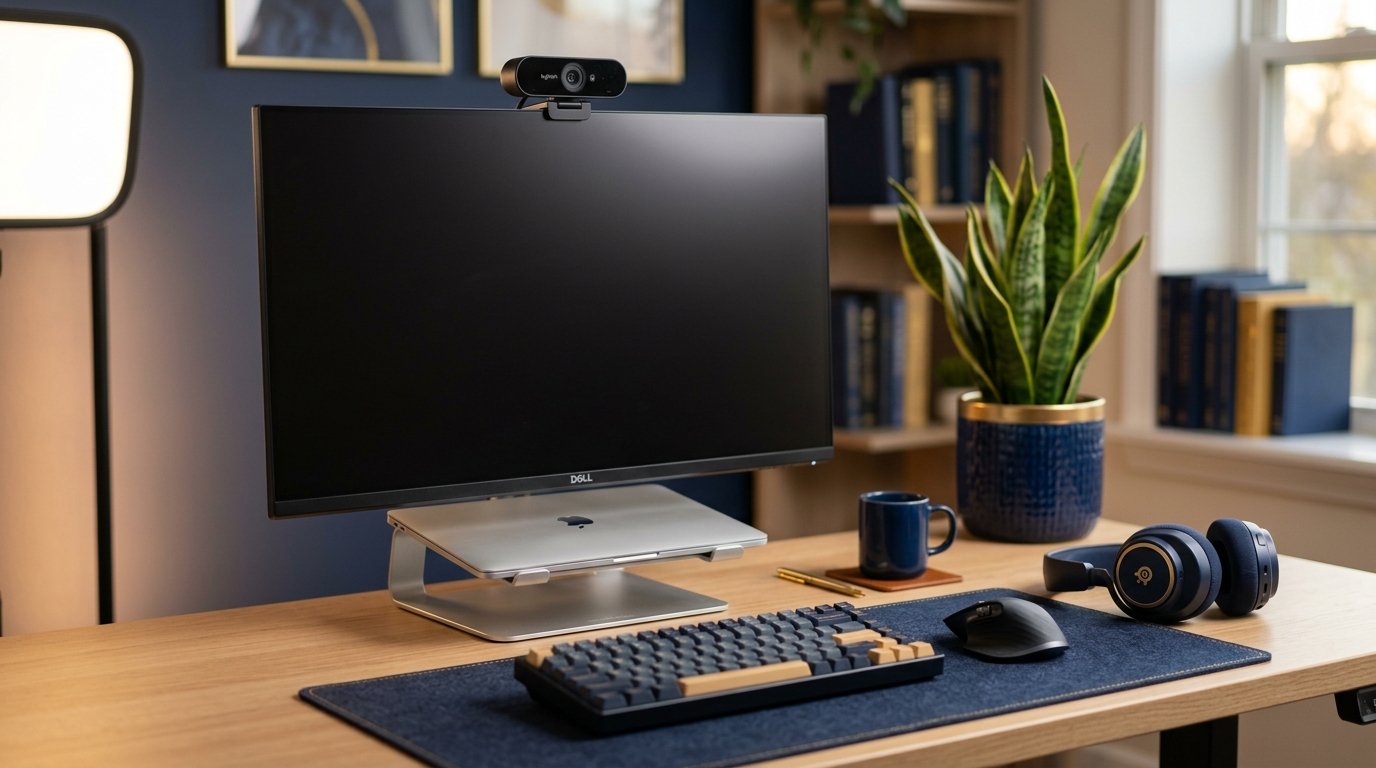
If you’re using a monitor, mount the webcam on top of it using a clip-on mount. If you’re on a laptop, a monitor arm or laptop stand closes the height gap instantly.
Webcam Comparison: Budget vs Mid-Range vs Pro
| Webcam | Resolution | Best For | Price Range | Tier |
|---|---|---|---|---|
| Logitech C920 | 1080p / 30fps | Home office daily calls | $70–$90 | Budget |
| Logitech C925e | 1080p / 30fps | Business & education | $90–$110 | Mid-Range |
| Elgato Facecam | 1080p / 60fps | Creators & educators | $130–$160 | Best Value |
| Razer Kiyo Pro Ultra | 4K / 30fps | C-suite, large displays | $200–$280 | Pro |
| Sony ZV-E10 + Capture Card | 4K+ DSLR-quality | Studios, broadcast-quality | $450+ | Studio |
Lighting Your Best Desk Setup for Online Meetings
The Golden Rule: Light Faces the Camera
Your key light source must sit in front of you — never behind. Backlighting turns you into a silhouette. Overhead-only lighting creates harsh shadows under the eyes and chin.
The most effective setup uses a soft, diffused front light placed slightly above eye level and angled down at roughly 45°. This mimics the “beauty lighting” used in broadcast television — and it genuinely works on video calls too.
Three Lighting Setups by Budget
- Under $30 — Ring Light (10″–12″): Clip onto your monitor or position on a desk tripod. Creates even, flattering light. Avoid cheap models with obvious orange-yellow tones; look for bi-color (warm/cool) options.
- $30–$80 — Key Light Panel (e.g., Elgato Key Light Mini): App-controlled brightness and color temperature. Much more professional spread than a ring light. Eliminates the “ring reflection” in eyeglasses.
- $100–$300 — Two-Point Lighting Kit: Key light + fill light on opposite side. Eliminates all harsh shadows. Standard for educators, coaches, and executives who are on camera daily.
In my professional experience, a $45 LED panel with a diffuser beats a $200 ring light for most desk setups. Panels produce flat, even light — rings create circular reflections visible in glasses and eyes.
Free Resource
Get the Wisdom Tech Desk Setup Checklist
A printable PDF checklist covering every accessory, placement angle, and lighting configuration for a professional meeting setup — sent directly to your inbox.Download Free Checklist →
Monitor Stands and Laptop Risers: The Setup That Actually Helps Your Posture
Why Stands Matter Beyond Camera Angle
A monitor or laptop stand does double duty: it raises your screen to eye level (critical for webcam positioning) and reduces neck strain during long call days. After years of observing remote workers and students, the setup without a stand is almost universally a bad camera angle — and chronic neck pain.
- Fixed Monitor Stand: Best for desktop setups. Look for a stand with cable management. Height range of 3″–6″ suits most desks and chair combinations.
- Adjustable Monitor Arm: The premium option. Clamp-mount arms (single or dual) give you full articulation — tilt, swivel, height — at any point during the day. Ergotron LX is the industry standard.
- Laptop Riser + External Keyboard: If you work from a laptop, raise it with a riser and connect an external keyboard and mouse. This is a non-negotiable for anyone on more than 2 calls per day.
Recommended Stands by Use Case
| Product Type | Best Use | Price | Key Feature |
|---|---|---|---|
| Laptop Riser (Aluminum) | Students, remote workers | $20–$45 | Portable, passive cooling |
| Fixed Monitor Stand | Single-monitor home offices | $30–$70 | Stable, cable-managed base |
| Single Monitor Arm (Ergotron LX) | Daily-use desk workers | $90–$140 | Full articulation, gas spring |
| Dual Monitor Arm | Power users, developers | $120–$200 | Two-display management |
Headsets and Audio: The Most Underrated Part of Any Meeting Desk Setup
Why Audio Quality Outranks Video Quality
Research from the broadcast industry consistently shows that viewers tolerate poor video far longer than they tolerate poor audio. Crackle, echo, background noise, or low-volume output immediately breaks concentration and makes meetings exhausting for everyone involved.
Your built-in laptop microphone picks up keyboard clicks, room echo, and HVAC hum — all of which undermine your authority on every call. A dedicated headset or microphone eliminates all of this.
Types of Headsets for Online Meetings
- Over-Ear Headsets (USB or 3.5mm): The best all-day comfort option. Models like the Jabra Evolve2 40 or Logitech H800 offer excellent mic quality and passive noise isolation.
- True Wireless Earbuds with Mic: Great for mobility. Suitable for calls under 90 minutes. AirPods Pro, Galaxy Buds Pro, and Jabra Elite series all perform well on calls.
- USB Condenser Microphone (Mic + Headphones Separately): The professional broadcaster approach. A Blue Yeti Nano or Rode NT-USB Mini, paired with closed-back headphones, gives podcast-quality audio on calls.
Headset Comparison Table
| Product | Type | Noise Cancel | Price | Best For |
|---|---|---|---|---|
| Logitech H390 | Over-Ear USB | Basic | $30–$40 | Budget home calls |
| Jabra Evolve2 40 | Over-Ear USB-C | Active (ANC) | $150–$180 | Business professionals |
| Apple AirPods Pro | True Wireless | Active (ANC) | $200–$250 | Apple ecosystem users |
| Rode NT-USB Mini | Desk Condenser Mic | Cardioid pattern | $90–$110 | Educators, coaches, daily calls |
| Blue Yeti Nano | Desk USB Mic | Cardioid pattern | $80–$100 | Home studios, content creators |
Background and Environment: Completing Your Professional Desk Setup
The Background Frame Rule
Your background tells a story before you speak. A clean wall, a subtle bookshelf, or a minimal branded backdrop communicates organization and intention. A cluttered room with laundry visible in the corner communicates the opposite.
- Real background: Keep within the camera’s FOV clean, well-lit, and purposeful. A bookshelf with curated items, a plant, or a simple wall with one framed item works well.
- Virtual background: Use a high-quality blurred or replacement background only if your real environment can’t be controlled. Low-quality virtual backgrounds with edge-fringing look worse than a slightly messy room.
- Acoustic panels: If echo is an issue, acoustic foam panels on the wall behind or beside your monitor serve double duty — they improve audio quality and create a cleaner visual background.
Quick Cable Management Wins
Exposed cables in your camera’s view immediately reduce perceived professionalism. Use cable clips, a cable raceway, or a simple cable sleeve to run all cords out of the camera’s line of sight. This one change takes 15 minutes and is immediately visible on camera.
Frequently Asked Questions
1What is the best desk setup for online meetings on a budget?
Start with a $15–$25 laptop stand, a basic ring light ($25–$35), and a USB headset with microphone ($30–$50). This combination — under $110 total — addresses the three biggest problems: bad camera angle, poor lighting, and terrible audio. Add a dedicated webcam as a next step if your built-in camera is below 720p.
2How do I look more professional on Zoom or Google Meet without buying expensive gear?
Position yourself so a window or a lamp faces you (not behind you). Raise your laptop or monitor so the camera sits at eye level. Blur or clean your background. Wear solid-colour clothing — patterns and busy prints look distracting on camera. These are zero-cost improvements that work immediately.
3Is a ring light or a key light better for video calls?
For most people, a key light panel is better than a ring light. Key light panels produce a flat, even, soft light without the circular reflection visible in glasses and eyes. Ring lights are better for mobile creators or beauty-focused content, not for professional desk setups.
4Do I really need an external webcam if my laptop camera is 1080p?
If your laptop camera shoots true 1080p (not interpolated), the built-in camera quality is acceptable. The bigger issue is placement — built-in cameras are always too low. A monitor stand or laptop riser fixes the angle problem at much lower cost than buying an external webcam. Only upgrade the camera once your angle and lighting are already optimized.
5What headset do professionals use for daily online meetings?
The Jabra Evolve2 40 and Logitech Zone Wired are the top choices for business professionals who spend 4+ hours daily on calls. Both offer active noise cancellation, certified for Microsoft Teams and Zoom, and provide exceptional microphone clarity even in open offices or noisy home environments.
6What is the best monitor stand for working from home and video calls?
The Ergotron LX single monitor arm is the best investment for most home office setups. It offers infinite height adjustment, tilt, and rotation — meaning you can position your screen and camera perfectly regardless of desk height or chair height. For laptop users, the Nexstand or Rain Design mStand are excellent fixed risers at a fraction of the cost.
7How should I position my webcam for the best angle on video calls?
Place the webcam at eye level or 1–2 inches above it, roughly 50–80cm from your face. The frame should capture your face and about 6–8 inches of shoulder on each side. Avoid tilting the camera up or down — keep it level to maintain natural eye contact with other participants on the call.
8Does background matter for online meetings, or is a virtual background fine?
A real, clean background always looks more professional than a virtual one in 2026. However, a high-quality virtual background (preferably with a green screen or ring light to minimize edge bleed) is far better than a cluttered real background. The priority order is: clean real background → virtual with green screen → virtual without green screen → cluttered real background.
9What is the best desk setup for online teaching or tutoring sessions?
For teachers and tutors, prioritize audio above all else — a desktop condenser microphone like the Rode NT-USB Mini makes lessons significantly easier to follow. Pair it with a 1080p webcam mounted at eye level, a key light panel with adjustable color temperature, and a clean background (whiteboard, bookshelf, or neutral wall). A second monitor for lesson materials is a major workflow upgrade.
10How much should I spend on a complete professional desk setup for video calls?
A solid professional setup costs $150–$350 total: laptop stand or monitor arm ($25–$140), key light or ring light ($30–$80), webcam ($70–$160), and headset or USB mic ($40–$150). You don’t need to buy everything at once — prioritize lighting first, then audio, then camera upgrade. Each improvement delivers immediate visible results on every call you make.