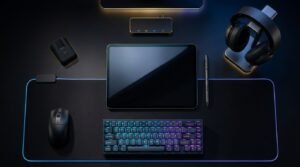



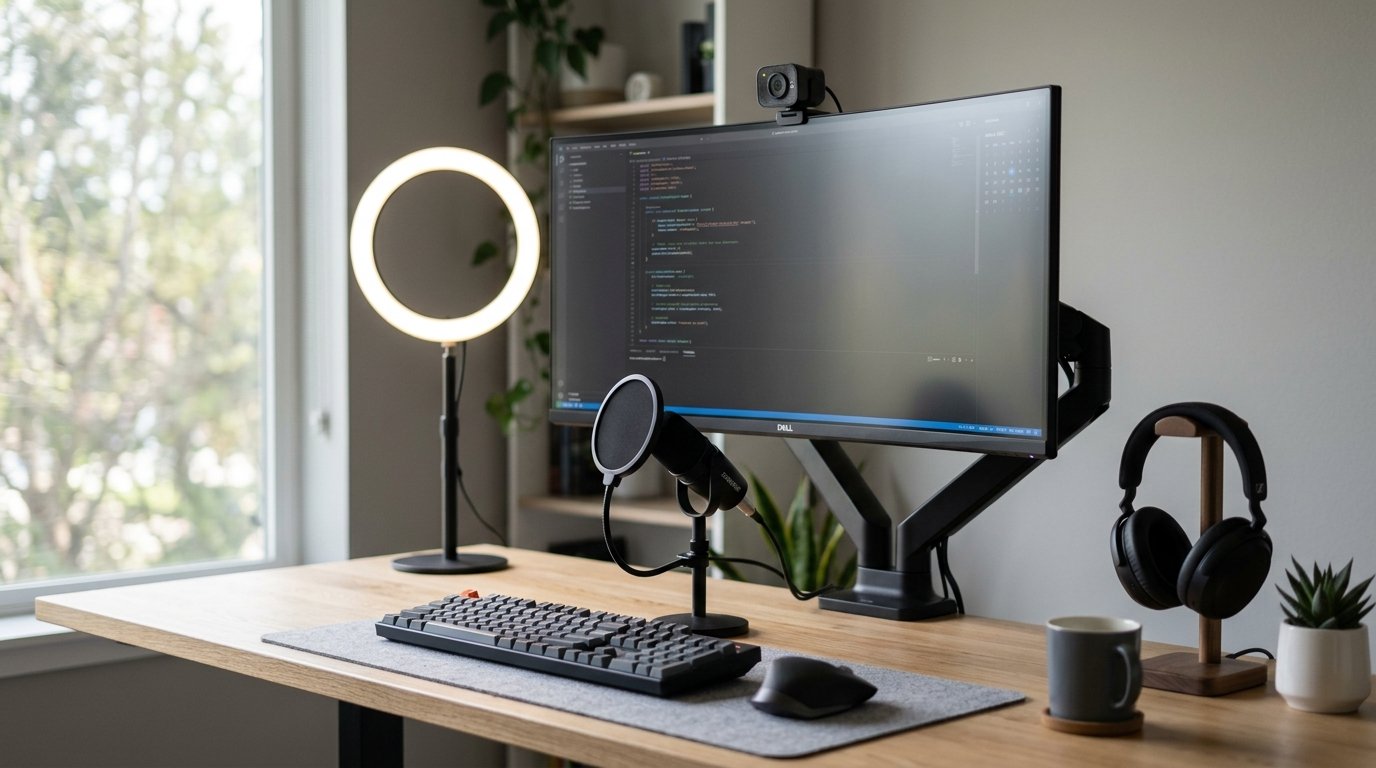
⚡ TL;DR / Key Takeaways A professional desk setup for online meetings requires four core elements: a quality webcam, proper lighting, a stable monitor or laptop stand, and a clear-sounding headset. Together, these upgrades take you from “grainy Brady Bunch box” to a polished, credible presence — without a studio budget. Read on for exact product categories, a comparison table, and setup tips you can implement today.
Why Your Desk Setup for Online Meetings Matters More Than You Think
Video calls are now the first impression. Before you say a word, your client, interviewer, or executive has already judged your lighting, your background, and your audio.
In my professional experience working with remote teams and consultants, a poor video setup quietly signals low attention to detail — even when the person behind the screen is highly competent. It’s unfair, but it’s the reality.
The good news: fixing your setup is a one-time investment that pays back on every single call.
The 4 Pillars of a Professional Online Meeting Setup
1. Webcam — Your Visual First Impression
Your laptop’s built-in camera sits below eye level, shoots upward, and maxes out at mediocre 1080p quality. An external webcam changes everything.
What to look for in a webcam for meetings:
- Resolution: 1080p minimum; 4K if you present or record often
- Field of view: 65°–78° keeps the frame tight and professional (wider angles distort faces)
- Autofocus & low-light correction: Non-negotiable for home offices with variable lighting
- Mounting flexibility: Sits flat on monitors, tripod-compatible is a bonus
Top webcam categories by budget:
| Budget | What You Get | Best For |
|---|---|---|
| Under $80 | 1080p, fixed focus, basic mic | Occasional calls, students |
| $80–$150 | 1080p 60fps, autofocus, light correction | Daily remote workers |
| $150–$250 | 4K, HDR, wide-angle, AI framing | Executives, content creators |
| $250+ | Studio-grade optics, Sony sensor | Broadcasters, C-suite |
What we’ve observed in the market: the $100–$150 range delivers 80% of the quality jump for most professionals. Spending more only pays off if you also invest in lighting.
2. Lighting — The Single Biggest Upgrade Per Dollar
No webcam — regardless of price — compensates for bad lighting. This is the most underrated element of a professional video setup.
The three lighting problems to solve:
- Backlight: Window behind you turns your face into a silhouette. Move your desk to face the window, or block it.
- Harsh shadows: Overhead room lighting creates unflattering shadows under eyes and nose.
- Color temperature mismatch: Mixing warm bulbs and daylight looks inconsistent on camera.
Lighting solutions ranked by effectiveness:
- Ring light (desktop, 10″–14″) — Affordable, eliminates shadows, adds eye catchlights. Place it at eye level, slightly off-center for a natural look.
- Key light panel (LED panel, adjustable color temp) — More professional diffused light. Brands like Elgato and Lume Cube are industry standards.
- Softbox (photography light) — Maximum control, requires space. Ideal for home offices with a dedicated corner.
- Natural light + reflector — Free. Position your desk to face a window and use a white foam board opposite the window to fill shadows.
Pro tip: Set your light color temperature between 4000K–5000K (neutral daylight). Warmer tones (3000K) look orange on camera; cooler tones (6500K) look clinical.
3. Monitor Stand or Laptop Stand — Fix Your Eye-Level Instantly
Camera angle is a posture issue. Most people look down into their laptops, which creates an unflattering up-the-nose shot and causes neck strain over long days.
The fix is simple: raise your screen so your eyes align with the top third of your camera frame.
Stand options by setup type:
| Setup Type | Best Solution | Approx. Cost |
|---|---|---|
| Laptop only | Adjustable laptop stand + external keyboard/mouse | $25–$60 |
| Single monitor | Monitor arm (frees desk space, full adjustability) | $40–$120 |
| Dual monitor | Dual monitor arm | $60–$180 |
| Laptop + external monitor | Monitor arm + laptop stand side-by-side | $80–$200 |
In my professional experience, a monitor arm is the highest-ROI desk upgrade outside of lighting. It clears desk clutter, lets you dial in the exact eye-level position, and works for standing desk configurations too.
What to look for in a monitor stand or arm:
- VESA compatibility (75x75mm or 100x100mm covers 95% of monitors)
- Weight capacity that matches your monitor’s weight
- Cable management routing built into the arm
- Spring-loaded or gas-spring mechanism for smooth repositioning
4. Headset or Microphone — Sound Quality People Actually Notice
Audio is more critical than video. Research consistently shows that viewers forgive poor video before poor audio. A muffled, echoing, or noisy mic breaks concentration and makes calls exhausting.
Your options, ranked:
Option A: Wired USB Headset
- Best for: call centers, full-day meeting schedules, noisy environments
- Pros: consistent audio, no battery anxiety, noise isolation
- Cons: you’re tethered to your desk
Option B: Wireless Headset (Bluetooth or USB dongle)
- Best for: professionals who move around during calls
- Pros: freedom, premium build quality at mid-range prices
- Cons: battery management, occasional latency with Bluetooth
Option C: Desktop USB Condenser Microphone
- Best for: execs, presenters, podcasters who want studio sound
- Pros: superior sound quality, no headphones required
- Cons: picks up more room noise, requires acoustic treatment
Option D: Earbuds with inline mic (AirPods-style)
- Best for: occasional calls, travel setups
- Cons: inconsistent mic quality, looks casual on video
🎙️ Quick rule: If you’re on calls more than 2 hours per day, invest in a dedicated headset or USB mic. Your colleagues will thank you — and you’ll reduce meeting fatigue significantly.
💼 Upgrade Your Entire Setup Without the Research Headache
If you’d rather skip hours of comparison shopping, [Your Newsletter/Product/Service Name] curates the best work-from-home gear — tested by remote professionals, filtered by value. Subscribe/Shop now and get our up-to-date “Remote Professional Starter Kit” guide free.
Complete Desk Setup for Online Meetings: At-a-Glance Table
| Component | Budget Pick | Mid-Range Sweet Spot | Premium |
|---|---|---|---|
| Webcam | Logitech C920 (~$70) | Logitech Brio 300 (~$130) | Insta360 Link 2 (~$230) |
| Lighting | Ring light 10″ (~$30) | Elgato Key Light Mini (~$100) | Lume Cube Panel Pro (~$150) |
| Stand/Arm | Laptop riser + stand (~$30) | Ergotron LX Arm (~$110) | Fully Jarvis Arm (~$160) |
| Audio | Jabra Evolve2 30 (~$90) | Poly Voyager Focus 2 (~$180) | Blue Yeti USB Mic (~$130) |
| Total (Mid) | ~$160 | ~$520 | ~$640+ |
Bonus: Background & Environment Tips
Your setup doesn’t stop at hardware.
- Declutter your background — A clean wall or simple bookshelf reads as organized and professional.
- Virtual backgrounds as a last resort — They glitch on moving hair and hands. A real, tidy background always wins.
- Acoustic panels or soft furnishings — Rugs, curtains, and bookshelves reduce echo dramatically.
- Room positioning — Never sit with your back to a bright window. Face it instead.
How to Test Your Setup Before Going Live
- Open your camera app or a test call tool (Zoom has a built-in camera/mic tester).
- Check: Is your face well-lit with no harsh shadows?
- Check: Is the camera at eye level or slightly above?
- Record a 30-second clip and play it back. Listen for echo, distortion, or room noise.
- Ask a trusted colleague to give you honest feedback on your video and audio quality.
Small adjustments — moving a lamp 12 inches, raising your stand 2 notches — make outsized visible differences.
Final CTA: Start With One Upgrade Today
You don’t have to overhaul everything at once. Start with lighting — it’s the cheapest, fastest improvement. Then add a webcam. Then audio.
Want a shortcut? [Your Product/Newsletter/Service] does the vetting for you. We test gear, rank it by real-world performance, and send recommendations to your inbox monthly. [Join free / Shop the collection →]
Frequently Asked Questions
1. What is the best desk setup for online meetings on a tight budget? Start with a $30 ring light and position it at eye level facing you. Then raise your laptop on a stack of books to get camera-eye level. That’s a $30 total investment that eliminates the two biggest visual problems: poor lighting and a bad camera angle.
2. Do I need a 4K webcam for professional video calls? Not necessarily. For most meetings and platforms like Zoom, Teams, or Google Meet, 1080p at 30fps is sufficient. 4K becomes worthwhile if you record training videos, present to large audiences, or want future-proofing headroom.
3. What’s better for meetings: a headset or a desktop microphone? It depends on your environment. In a noisy home office, a closed-back headset with noise cancellation performs better. In a quiet, acoustically treated room, a USB condenser mic sounds richer and more natural. For most remote professionals, a wireless headset is the safest all-around choice.
4. Where should I position my ring light for video calls? Place it directly in front of you, at eye level or slightly above, between 2–4 feet from your face. Off-center placement (about 45 degrees to the side) gives a more professional, dimensional look versus flat frontal lighting.
5. How do I fix a bad camera angle on a laptop? Raise your laptop so the camera aligns with your eyes or slightly above. Use a dedicated laptop stand (adjustable models cost $25–$60) paired with an external keyboard and mouse. This also improves your posture and reduces neck strain.
6. What background looks most professional on video calls? A clean, uncluttered wall in a neutral tone (white, gray, light beige) is the safest choice. A bookshelf with organized books reads as credible and personable. Avoid busy patterns, strong colors, or anything with personal or distracting items in frame.
7. Does internet speed affect my video call quality? Yes. For a stable 1080p video call, you need at least 5 Mbps upload speed. For multiple participants or 4K, aim for 10+ Mbps upload. Run a speed test at fast.com before important calls. A wired Ethernet connection is far more stable than Wi-Fi for critical meetings.
8. How do I reduce echo on my video calls? Add soft surfaces to your room — rugs, curtains, upholstered furniture, and bookshelves all absorb sound. If your room is very bare and echoey, affordable acoustic foam panels on the wall behind your monitor make a measurable difference.
9. Is a monitor arm worth it for a home office? Yes — especially for anyone on calls daily. A monitor arm lets you set the precise height and angle for camera alignment, frees up significant desk space, and lets you quickly reposition for different tasks. The Ergotron LX (~$110) is widely considered the best value in the category.
10. What desk setup do remote executives and content creators actually use? The typical professional setup at the higher end includes: a 4K webcam (Insta360 Link 2 or Sony ZV-E10 with capture card), a two-point LED lighting setup (key light + fill), a USB condenser mic or broadcast-quality headset, a monitor arm, and a clean, intentional background. Total investment ranges from $500–$1,500, but the baseline professional look is achievable for under $300.